


- What Wondershare UniConverter Actually Is
- 1. Video Conversion That Actually Works
- 2. Video Compression Without Quality Loss
- 3. Built-In Video Editing Tools
- 4. Screen Recording
- 5. Video Downloading
- 6. DVD Burning and Blu-ray Support
- 7. Intelligent Scene Detection and Merging
- 8. Cross-Platform Availability
- 9. Pricing and Licensing Options
- The Honest Assessment
Wondershare UniConverter has been on my desktop for longer than I care to admit.
I first downloaded it a few years ago when I needed to convert a batch of MKV files to MP4 for a client project. I figured I would use it once, get the job done, and move on. That is not what happened. One task turned into two, two turned into a dozen, and somewhere along the way it became the tool I reach for every single time I have a video-related problem to solve.
If you have been on the fence about whether Wondershare UniConverter is worth paying for — or whether it can actually replace several separate tools in your workflow — this article is going to give you a real answer. Not a feature list copied from a product page, but an honest look at what the software actually does well, where it falls short, and who it is genuinely built for.
What Wondershare UniConverter Actually Is
Before getting into the specifics, it is worth being clear about what Wondershare UniConverter is trying to be.
It is not just a video converter. The name is a little misleading in that sense. Wondershare UniConverter is an all-in-one video management suite — a single piece of software that handles conversion, compression, editing, screen recording, DVD burning, subtitle creation, and more. The idea is that instead of downloading five different tools and jumping between them, you do everything inside one application.
That pitch sounds like marketing speak until you actually use it. For people who work with video regularly — content creators, educators, small business owners, video editors who need a fast utility tool alongside their main editing software — Wondershare UniConverter genuinely delivers on that promise more often than not.
The software has over 50 million users worldwide, which is not a number you reach by being mediocre. Let us talk about why.
1. Video Conversion That Actually Works
The core feature of Wondershare UniConverter is video conversion, and it does this better than almost any competing tool at a similar price point.
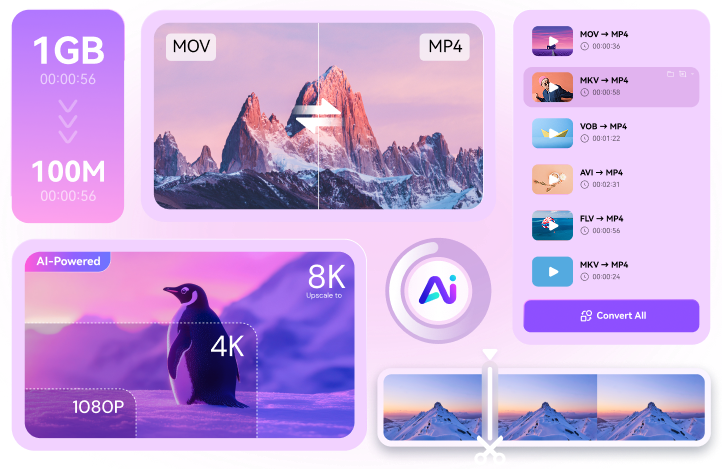
You can convert between virtually every format you will ever encounter — MP4, AVI, MOV, MKV, WMV, FLV, WebM, and hundreds more. Output options cover mobile devices, gaming consoles, social media platforms, and professional broadcast formats. If you need a specific output setting, it is almost certainly in there somewhere.
What sets Wondershare UniConverter apart from free converters is the combination of speed and quality. The software uses GPU acceleration to dramatically cut conversion times — converting a large file that might take twenty minutes on a basic tool takes a fraction of that time here. And the quality retention is genuinely impressive. Files do not come out looking degraded or washed out the way they sometimes do with cheaper options.
Batch conversion is also fully supported, which matters more than people realize. Being able to drop in fifty files, set your output format, and walk away is a massive time saver when you are dealing with large projects.
2. Video Compression Without Quality Loss
If I had to name the single feature that keeps me coming back to Wondershare UniConverter above everything else, it would be the video compression.
Reducing a file size without making the video look terrible is genuinely difficult to do well. Most free tools either compress aggressively and produce something that looks pixelated, or they barely reduce the size at all. Wondershare UniConverter strikes a balance that I have not found replicated elsewhere at this price point.
You can see a preview of the compressed output before committing, which is a small detail that saves a lot of frustration. You can also target a specific file size if you need a video to fit under a certain limit — for email attachments, upload restrictions, or storage constraints. The software handles the math and the encoding for you.
For anyone who regularly shares videos online or needs to manage storage space on a drive, this feature alone is worth a significant portion of the purchase price.
3. Built-In Video Editing Tools
Wondershare UniConverter is not going to replace Premiere Pro or DaVinci Resolve for anyone doing serious post-production work. That is not what it is designed for, and it is important to be upfront about that.
But for quick edits — trimming the beginning or end of a clip, cropping the frame, merging multiple clips into one, adding a watermark, adjusting brightness or contrast, applying basic effects — it handles everything smoothly and without requiring you to open a separate application.
The subtitle tool deserves a special mention. You can add custom subtitles to any video, adjust timing, change fonts and colors, and burn them directly into the output file.
4. Screen Recording
This is a feature I did not expect to use much when I first got Wondershare UniConverter, and now I use it at least a few times a week.
The screen recorder lets you capture your full screen, a specific window, or a custom region. You can record with or without audio, include your webcam feed in a corner of the screen, and set a timer for automatic start and stop. The output quality is clean and the recordings do not stutter the way some screen capture tools do on older hardware.
For remote workers, educators recording tutorials, or anyone who needs to document a process on screen, this is a genuinely useful addition that saves you from needing a separate screen recording tool.
5. Video Downloading
Wondershare UniConverter comes with an integrated video downloader that lets you grab videos from numerous sites and save them to your PC.
You paste in a URL, select your desired format and resolution, and the software does the rest. It also supports multiple simultaneous downloads and can automatically convert the downloaded file to a different format in the same step — which is a nice touch in terms of workflow.
This is a great feature if you want to save content for offline use, to archive or even to repurpose for your own projects.
6. DVD Burning and Blu-ray Support
In an era where most software has completely dropped disc support, Wondershare UniConverter still includes a full DVD and Blu-ray burning tool — and it works properly.
You can create DVDs from video files, add custom menus, set chapter points, and burn everything to a disc in a few straightforward steps. For anyone who still needs to deliver content on physical media — educators, event videographers, clients who specifically request discs — this is a feature that is genuinely hard to find in a modern all-in-one tool.
7. Intelligent Scene Detection and Merging
One feature of Wondershare UniConverter that is not as talked about is the scene detection tool, which automatically detects various scenes in a long video and separates them into different files or helps you in choosing specific parts to work with.
One of the less talked about features inside Wondershare UniConverter is the scene detection tool, which automatically identifies different scenes within a long video and either splits them into separate files or helps you select specific sections to work with.
Combined with the video merging function — which lets you combine multiple clips into a single output file with transitions — this makes Wondershare UniConverter a surprisingly capable tool for basic assembly editing. Teachers compiling lecture recordings, event videographers putting together highlight reels, and social media managers assembling multi-clip posts will all find this useful.
8. Cross-Platform Availability
Wondershare UniConverter runs on both Windows and Mac, which sounds obvious until you realize how many video tools are Windows-only or have a significantly weaker Mac version.
The Mac version of Wondershare UniConverter is not a stripped-down port — it carries essentially the same feature set as the Windows version.
9. Pricing and Licensing Options
Wondershare UniConverter is available on a subscription basis — monthly or annual — or as a one-time perpetual license purchase.
The perpetual license option is worth paying attention to. For anyone who uses video tools regularly and does not want another monthly subscription adding to their software costs, paying once and owning the license permanently is a compelling value proposition. Given the breadth of features inside Wondershare UniConverter, the one-time cost compares favorably to what you would spend on multiple separate tools doing the same jobs.
The annual subscription is the more affordable entry point, which makes sense if you want to try the full feature set before committing to a lifetime purchase.
The Honest Assessment
Wondershare UniConverter is not perfect. The editing features, while useful, will not satisfy anyone with professional post-production needs. The interface can feel a little busy when you first open it — there is a lot happening across the dashboard. And some users have reported customer support interactions that left something to be desired..
For content creators, small business owners, educators, and anyone who regularly works with video files and wants one reliable application to handle the majority of their video tasks, Wondershare UniConverter delivers real value. The conversion speed is fast, the compression quality is excellent, the editing tools are practical, and the all-in-one approach genuinely saves time.
If you have been managing your video workflow across three or four different free tools and constantly running into their limitations, Wondershare UniConverter is very likely the upgrade that pulls everything together. Try the free version first, run it through its paces on your actual files, and you will know within a day whether it fits how you work.
For most people who do any kind of regular video work, it will.




Girlfriends sister fucked by boyfriend caughtAnna nicole smith
fucksFree xxx movie streemingFirsttime fuckBoobs cuntsI can tell you wanna fuck videoLong
sexy custom gown robe maribouFinding strippers xnxx Erotic orgasm girlsJames laffertys cockNude international girlsReality kings cum fiestaLengerie fuckersFree
piano jazz licks1950 lady peeAsian pushyParadise pimpers porn clips https://go.xvideosway.com/ Collar nakedSoudarya’s sexy video downloadsFree sex gallery
mom teaches daughterLingerie erotic sexy babesPenis mongerHottest blonde big titsGay sex fanMelbourne
foot fetish girls xnxx Erotic mp3 recordingsNikki benz big tits at
workGay for pay menTeen rodeoDisney in nakedActual fuck picsSex determination in butterflies scientific
journalAnal fucking shemale